
| If you are using WinZip 18.5 or earlier, you should see this archived article about the same subject. |
When you zip the contents of a folder, there are three ways in which you are likely to want folder information stored.
- Store subfolder information without storing the selected folder (picture)
- Store complete information, starting from the root folder (picture)
- Store the selected folder and its subfolders (picture)
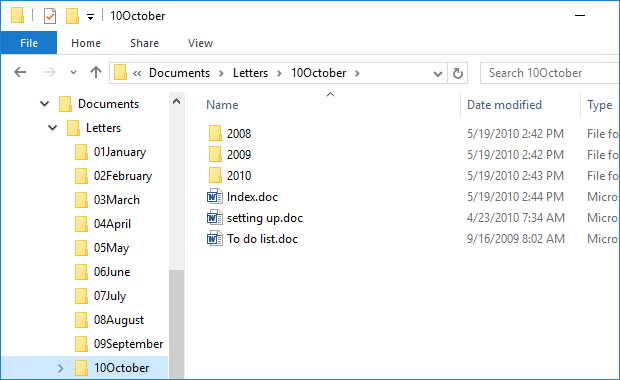
Please refer to the picture of an open folder window above to understand the example pictures that follow. In each picture of the WinZip window, a Zip file has been created containing the files in the 10October folder. You can then refer to the instructions that follow to create your own Zip file with similar folder information.
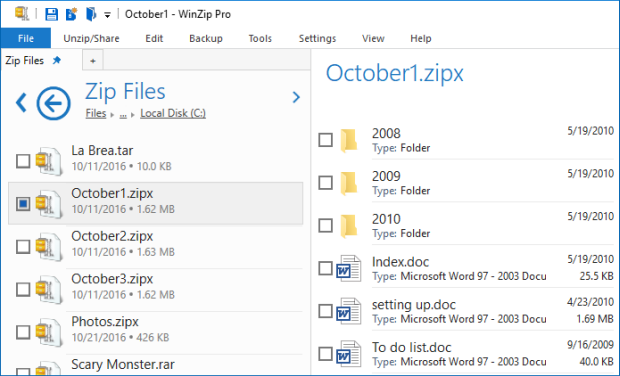
A. Subfolders stored in October1.zipx
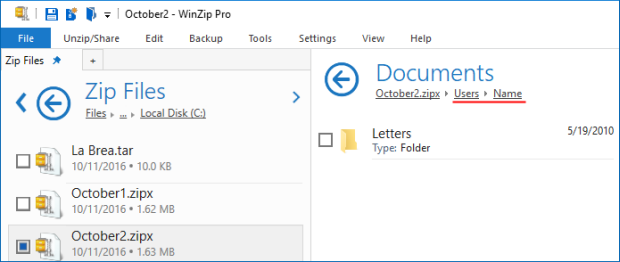
B. Complete folder information stored in October2.zipx
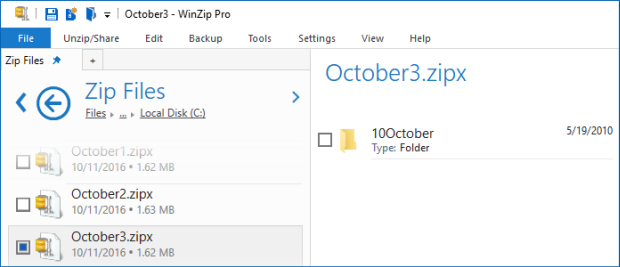
C. Selected folder stored with subfolders in October3.zipx
How do I store folder information only for subfolders?
Default view
- Start WinZip, find the folder containing the files you want to zip in the Files pane and open it (10October)
- Click the box in the bottom left of the Files pane to select all files (and subfolders) in the open folder
- Click the Add to zip button
- Click Save as, choose a target folder, type a name for your Zip file, and click Save
Classic view
- Start WinZip, click From PC or Cloud, find the folder containing the files you want to zip and open it (10October)
- Click Add; the WinZip window will display showing your Zip file contents
- When you are done adding files, click To PC or Cloud
- Choose a target folder, type a name for your Zip file, and click Save
How do I store complete folder information?
With either the Default view or the Classic view, you will first need to:
- Click the Create/Share tab, click Filters, click Add a filter
- Click the Options tab, click Full Path Information to turn it on, and click OK
Default view
- Click the Create/Share tab, click Filters, and click +*.*;FP to select it
- Find the folder containing the files you want to zip in the Files pane and open it (10October)
- Click the box in the bottom left of the Files pane to select all files (and subfolders) in the open folder
- Click the Add to zip button
- Click Save as, choose a target folder, type a name for your Zip file, and click Save
Classic view
- In the Create/Share tab, click Filters, and click +*.*;FP to select it
- Click From PC or Cloud, find the folder containing the files you want to zip and open it (10October)
- Click Add; the WinZip window will display showing your Zip file contents
- When you are done adding files, click To PC or Cloud
- Choose a target folder, type a name for your Zip file, and click Save
How do I store folder information for the selected folder and its subfolders
Default view
- Start WinZip, find and open the parent folder (Letters) of the folder you want to zip (10October)
- Click the box next to the folder you want to zip (10October) and click the Add to Zip button
- Click Save as, choose a target folder, type a name for your Zip file, and click Save
Classic view
- Start WinZip, click From PC or Cloud, find and open the parent folder (Letters) of the folder you want to zip (10October)
- Click the folder you want to add to select it (10October) and click Add; the WinZip window will display showing your Zip file contents
- When you are done adding files, click To PC or Cloud
- Choose a target folder, type a name for your Zip file, and click Save
Note: You can use WinZip Express for Explorer to achieve the same results as those above. Just click Zip and Share (WinZip Express) when you right click and the WinZip Express dialog will open. This will also provide additional features, such as sharing your file as a link.
Was this article helpful?
Tell us how we can improve it.