
The Windows 11, Windows 10, Windows 8, and Windows 7 operating systems have security rules and User Account Control (UAC) settings that restrict writing data to certain protected files and folders.
Error code 5 when registering indicates that a registration file from a previous version exists, that this file and probably the folder in which it resides have permissions restricted to an administrator, and that the user who is installing does not have the required permissions to save or edit the registration file. If this error is encountered, the best solution is to delete the particular folder and its files, and then let WinZip recreate them with the correct permissions. For this solution and to see other work around solutions, please click the link for your Windows version below and follow the detailed Error code 5 steps.
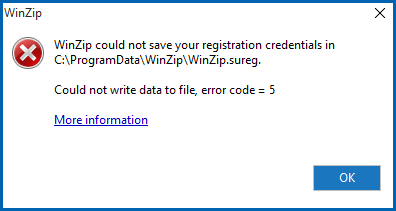
| Note: The steps below refer to the ProgramData folder which is usually hidden by Windows. If you would rather browse to this in a folder window, you would need to configure Windows to show hidden files and folders. Otherwise, please follow the steps given to open this folder. |
Windows 11/Windows 10
Best solution: delete the existing WinZip registration file
- On the keyboard, press
 (the Windows key)+R to open Run
 - Type: C:\ProgramData and click OK
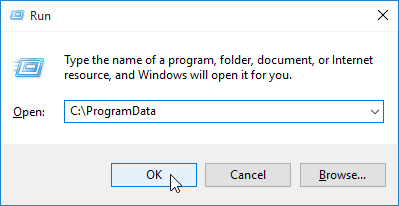
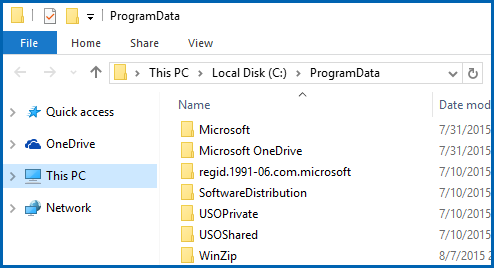
- In the ProgramData folder, click the WinZip folder to select it; then press Delete on the keyboard
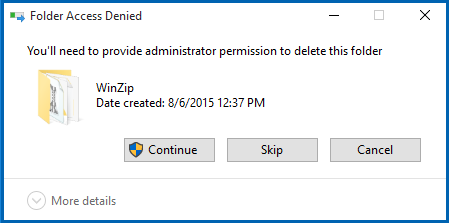
- Click Continue in the warning dialog that displays
- Open WinZip and enter your registration information
If these steps do not work for you, please continue to the alternate instructions below.
Run WinZip as administrator
| Note: This solution will allow you to register, but will not remove the cause of the issue. In the future, if you upgrade again on the same computer, you will encounter the error message again. |
- Right click the WinZip shortcut on the Desktop and click Run as administrator
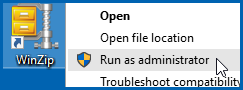
- Click Yes in the User Account Control dialog that opens
- When WinZip opens, enter your registration information
Windows 8
Best solution: delete the existing WinZip registration file
- Open to or change to the Start menu screen
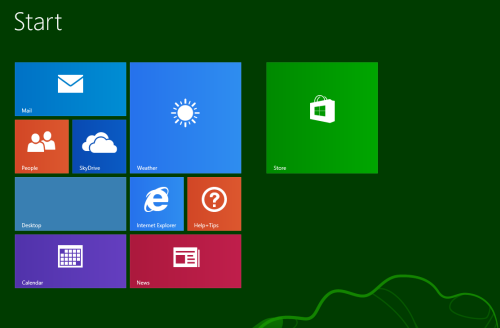
- Type the following (you do not need to click in any box before doing this):
C:\ProgramData

- Your typing displays in the Search box; press Enter on the keyboard
- In the ProgramData folder, click the WinZip folder to select it; then press Delete on the keyboard
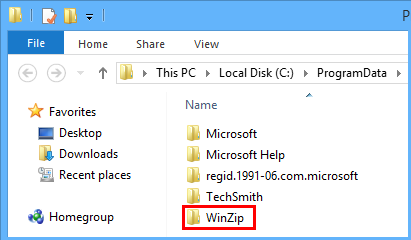
- Click Continue in the warning dialog that displays
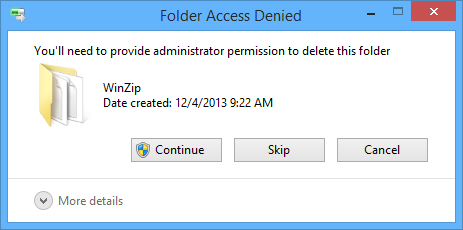
- Open WinZip and enter your registration information
If these steps do not work for you, please continue to the alternate instructions below.
Run WinZip as administrator
| Note: This solution will allow you to register, but will not remove the cause of the issue. In the future, if you upgrade again on the same computer, you will encounter the error message again. |
- Open to or change to the Desktop screen
- Right click the WinZip shortcut and click Run as administrator
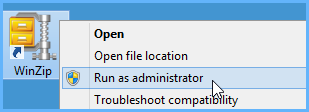
- Click Yes in the User Account Control dialog that opens
- When WinZip opens, enter your registration information
Windows 7
Best solution: delete the existing WinZip registration file.
- Click on the Taskbar Start button. In the text box just above the Start button type: C:\ProgramData.
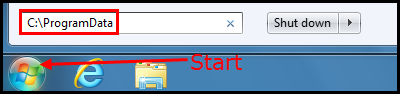
- Press the Enter key on the keyboard
- In the ProgramData folder, click the WinZip folder to select it; then press Delete on the keyboard
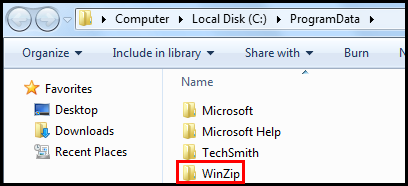
- Click Continue in the warning dialog that displays
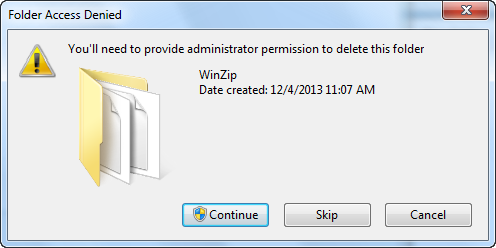
- Open WinZip and enter your registration information
If these steps do not work for you, please continue to the alternate instructions below.
Run WinZip as administrator
| Note: This solution will allow you to register, but will not remove the cause of the issue. In the future, if you upgrade again on the same computer, you will encounter the error message again. |
- On the Desktop, right click the WinZip shortcut and click Run as administrator
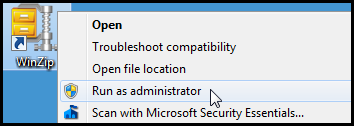
- Click Yes in the User Account Control dialog that opens
- When WinZip opens, enter your registration information
Was this article helpful?
Tell us how we can improve it.