Search:     Advanced search

WinZip Power Tips

Article ID: 246
Last updated: 08 Feb, 2010
Views: 4698

This article contains simple tips to help make you a more powerful and efficient WinZip user.


Quick WinZip usage in an open folder window

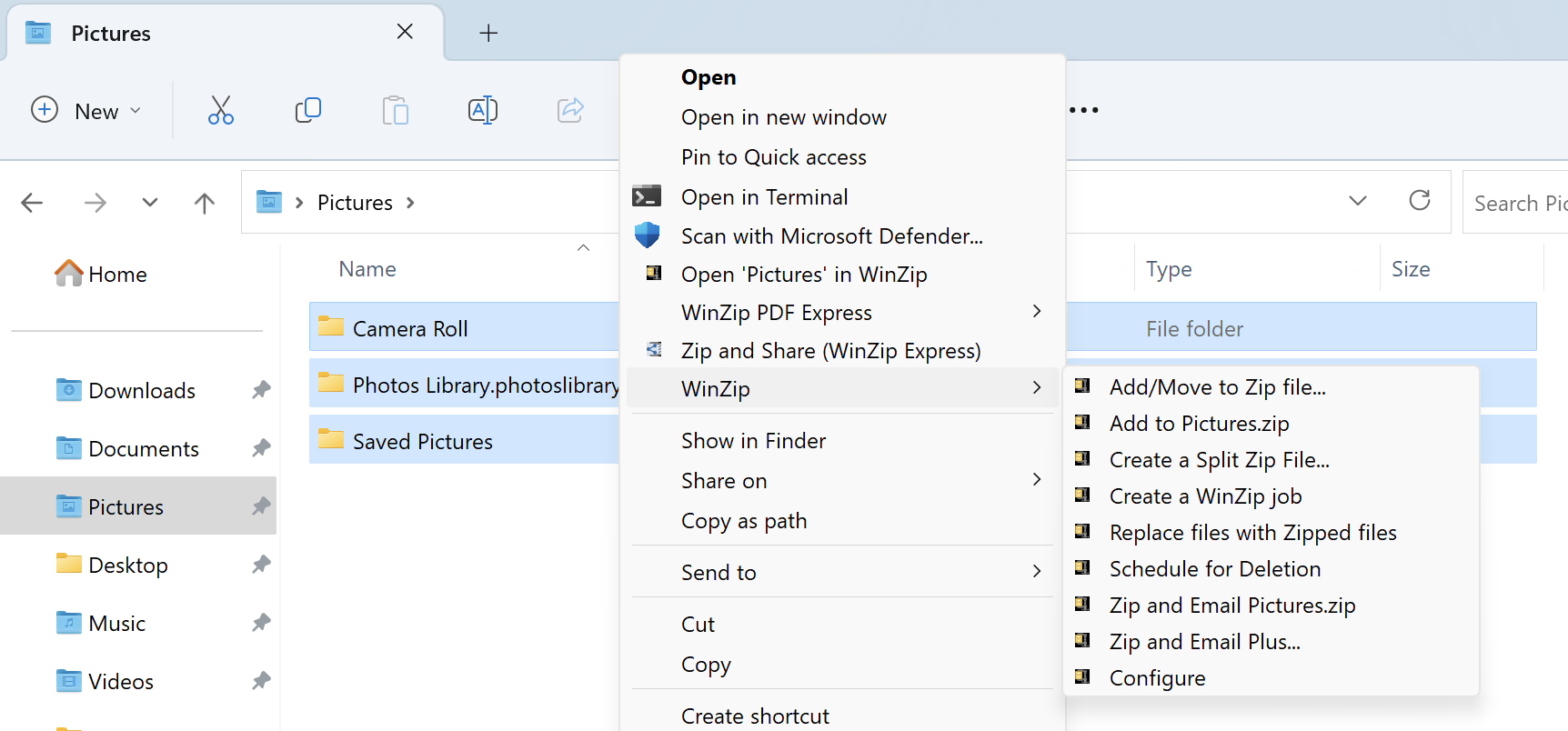
The quickest way to use WinZip is with the right click (context) menu in an open folder window.

  • To quickly and easily compress, encrypt, or zip and e-mail files, simply right click the files and choose the appropriate option from the WinZip menu.
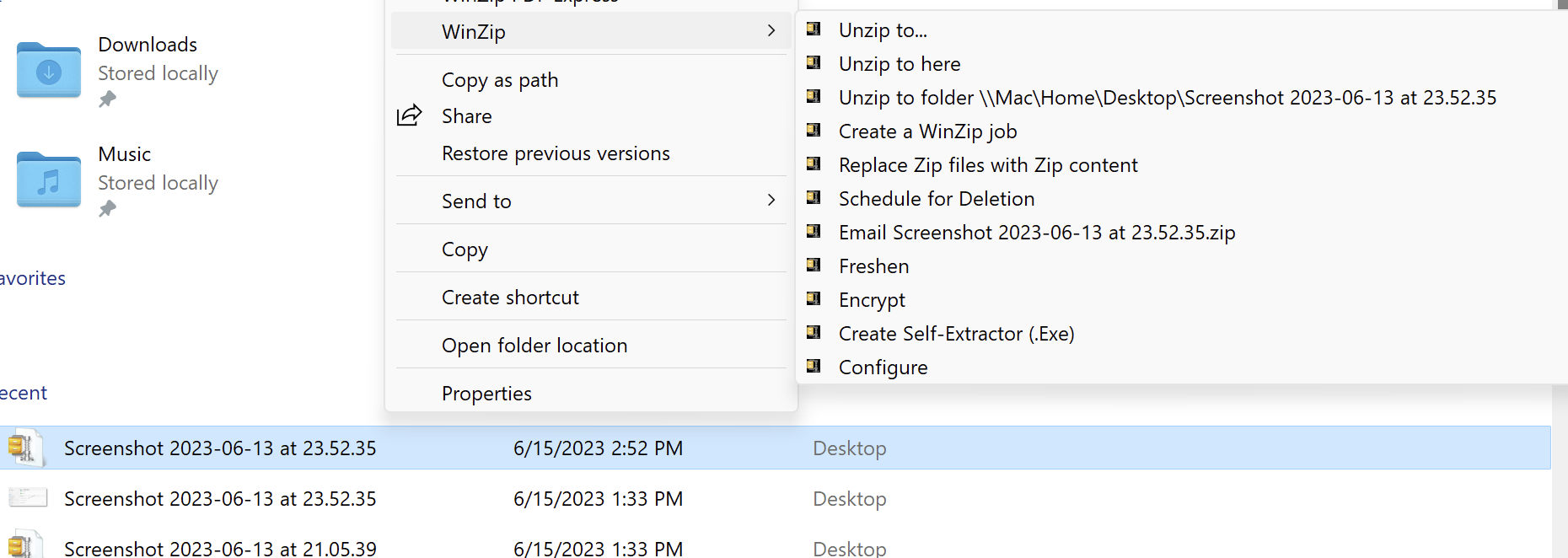
  • To extract files from an existing Zip file, right click the Zip file and choose one of the extract options from the WinZip menu.
  • To encrypt the contents of an existing Zip file, right click the Zip file and choose Encrypt from the WinZip menu.
  • To tailor the WinZip context menu to your specific needs and preferences, right click any file and choose Configure from the WinZip menu.

Additional information, along with other methods, is available at WinZip Offers Tight Integration with Windows.


Zip files and Advanced Compression

WinZip 12.1 introduced a new extended Zip file (.zipx), the next step in the evolution of the Zip file format. When using the Best Method compression setting to create Zip files (.zipx), WinZip 12.1 and later creates WinZip's smallest Zip files to date. The .zipx file type also makes it easier to share highly compressed files with others by making it clear that the file was created using advanced methods and that WinZip 12.1 or later (or another compatible compression utility) is required to open the file. Of course users can also still create Legacy Zip 2.0 compressed files with WinZip (resulting in a .zip file extension) by changing the compression method on a case by case basis or by changing the default compression method.


Split large Zip files into smaller pieces

WinZip makes it easy to split Zip files into smaller pieces. There are several reasons why you might want to split Zip files, such as:

  • To overcome e-mail size limits. Some e-mail systems limit the size of attachments; if you want to e-mail a large Zip file that exceeds your limit, you can split it into smaller parts and e-mail them separately.
  • As an alternative to spanned Zip files when you want to make multiple copies of the disk set.
  • As an alternative to spanned Zip files when you want to make the disk contents as a separate step from making the disks themselves.
  • To assist with large downloads. Some users may have difficulty downloading very large Zip files from web sites, FTP sites, etc. You can use the split Zip feature to break large files into smaller pieces that can be downloaded separately.

To split a Zip file, open the Zip file in WinZip. (If WinZip starts in Wizard mode, switch to the Classic interface by clicking the WinZip Classic button.) Then open the Actions menu and choose Split. Specify a filename and the size you want each part to be, then click OK.

You may also want to see How to create a split Zip file.


E-Mail features in WinZip

WinZip provides comprehensive, easy-to-use support for compressing and e-mailing files and folders.

  • Zip and E-mail: Right click files or folders and click this WinZip option to quickly attach a Zip file to a new e-mail message. If any of the files are photos, you will also be given the option to resize them, which can significantly reduce transmission time.
  • Zip and E-mail Plus: This works like Zip and E-Mail but also allows you to specify the name of the Zip file and to add encryption if desired.
  • Send ToMail Recipient (as Zipped Attachment): If you have a Zip file open in the Classic interface, you will find this feature on the File menu. If you have nothing selected (highlighted) in the Zip file when you click Send To, a copy of the entire Zip file will be attached to a new e-mail message. If any files or folders are selected, WinZip will offer you the option to send only the selected files or the entire Zip file.
  • WinZip E-Mail Companion: Microsoft Outlook and Windows Mail (or Outlook Express) users, can enjoy time-saving e-mail features. Please feel free to evaluate WinZip E-Mail Companion to discover what it has to offer.

If these features do not seem to work for you, please see Why aren't WinZip's e-mail features working for me?.


Secure your documents with 128- or 256-bit AES encryption

Choosing encryption while using WinZip will give you a way to protect sensitive documents contained in your Zip files using the advanced AES encryption technique. AES is the Advanced Encryption Standard, which is the result of a three-year competition sponsored by the U.S. Government's National Institute of Standards (NIST). This encryption method, also known as Rijndael, has been adopted by NIST as a Federal Information Processing Standard.

The contents of the files that you want to protect are encrypted by WinZip based on a password that you specify. In order for WinZip to later extract the original contents of the encrypted files, the correct password must again be supplied.

You can encrypt files with WinZip in two ways:

  • Encrypt files while you are adding them: Simply check Encrypt added files in the Add dialog, which is the most efficient way to encrypt your files
  • Encrypt files already in a Zip file: Open the Zip file in WinZip and choose Encrypt from the Actions menu; or, right click the Zip file in an open folder window and choose Encrypt from the WinZip context menu

More information about encryption is available in WinZip help. You may also want to see the Encryption section of the WinZip Knowledgebase.


Beyond Zip files: other archive support

Zip files are found almost anywhere and are a dominant archive type on the Internet. However, there are many other archive and compressed file formats. WinZip supports many of these formats, including RAR, 7z, BZ2, TAR, gzip, CAB, UUencode, XXencode, BinHex, MIME, LHA, LZH, and others. Whatever archive format you've download from the Internet, the chances are good that WinZip will be able to help you work with it. See Other Archive Support for more information on these other formats.


Powerful control from the command line

The WinZip Command Line Support Add-On (free for registered users of WinZip) gives you the power of WinZip without the WinZip graphical user interface. This add-on is ideal for quick zipping and unzipping from the command line and for automating repetitive tasks using batch (.BAT) files or scripts. An extensive set of command line options gives you pinpoint control over WinZip's actions. And, in automated environments, end-users don't need to know how to use WinZip. Please see the product page for this add-on or the WinZip Command Line Add-On section of the WinZip Knowledgebase for more information.


Transfer, compress, manage, and share JPEG photos from your digital camera

The Zip from camera feature in WinZip Pro Edition will transfer and compress JPEG photos from supported digital cameras in one easy step. If your camera supports orientation tags, WinZip will even automatically rotate your pictures to the correct orientation.

  • Plug your camera into your Windows PC and select Zip from camera using WinZip from the AutoPlay Device Option. The WinZip Camera Wizard will now walk you through the remaining steps.
  • When compressing photos to store on your PC or other media, be sure to use the Best compression method to compress your JPEG photos by 20% to 25% with no loss of photo quality or data integrity.
  • With WinZip Standard, you can view thumbnails of each picture in a Zip file and easily browse or delete photos. Using the New Folder feature, you can even organize your photos into folders within the Zip file with a simple drag-and-drop.
  • With WinZip Pro, the built in image viewer lets you view your photos as a slide show, rotate, resize, or delete pictures.
  • Use the Send Selected feature to select photos (or other files) to share and attach them to an e-mail as a new Zip file. For faster sharing, you can even resize the selected photos while leaving the original photos unchanged.
  • To open Zip files compressed with Jpeg compression, your recipients will need WinZip 12 or later or another Zip file utility compatible with Jpeg compression to extract the files.

Please see the Digital Cameras and Images section of the WinZip Knowledgebase for more information.


Jpeg compression; use less disk space for your JPEG photo collection

Digital photos are becoming larger in file size as cameras increase in their mega-pixel capacity. As you collect more photos, the amount of disk space used and the amount of time required to back up your photo library increases. WinZip's Jpeg compression can easily reduce the disk space required for your JPEG photos by 20% to 25%.

  • You can control how you organize your photo collection into Zip files. You can do so by year, by year and month or by another organizational format that you prefer.
  • Create new Zip files that match your organization scheme and then as you add your JPEG photo files to each Zip file, be sure to select the Best compression method to automatically use Jpeg compression.
  • To open Zip files compressed with Jpeg compression, your recipients will need WinZip 12 or later or another Zip file utility compatible with Jpeg compression to extract the files.

Please see Using Jpeg compression in WinZip or the Digital Cameras and Images section of the WinZip Knowledgebase for more information.


Click here to begin viewing a number of other Power Tip pages.

This article was:   Helpful | Not Helpful
Also listed in
folder WinZip
folder FAQ -> How to

Prev   Next
Split Zip Files     Other Archive Support

RSS