
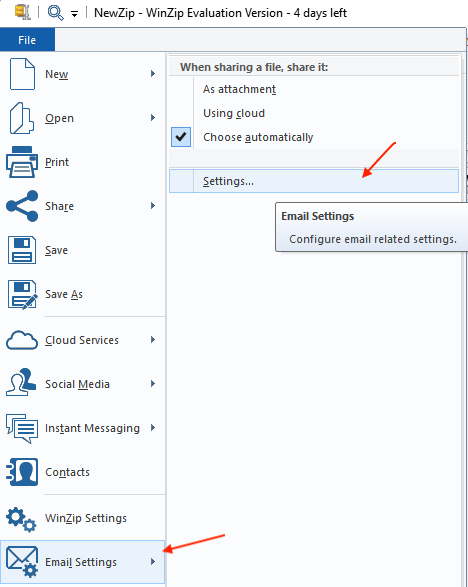
You can access the Email Settings by simply go to File and Email Settings > Settings....
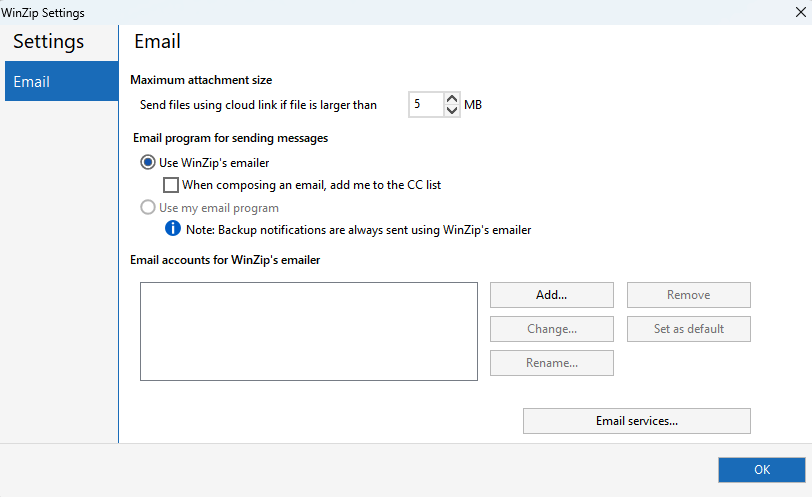
You can configure an email account for WinZip to use with its built-in email program and modify the maximum attachment size.
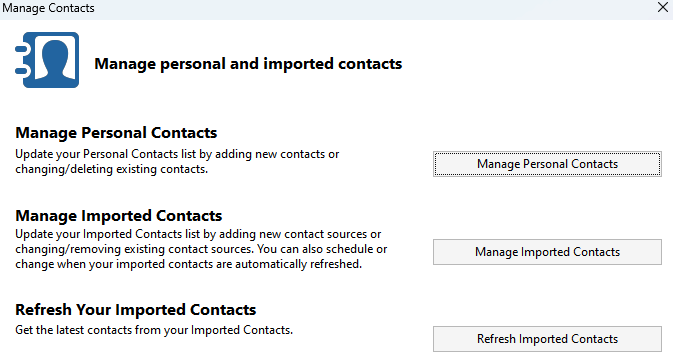
Starting with WinZip 21.0, you have the option to manage your Contacts by simply going to File > Contacts. This will enable you to import and combine your email account address books for use with the WinZip email program.
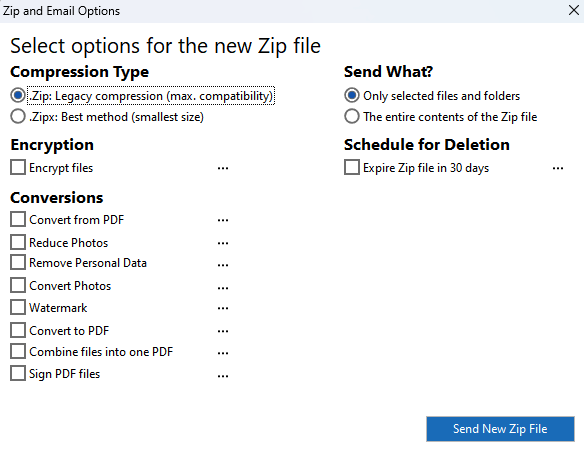
Zip and E-mail can create a new file that will not be permanently saved to your hard drive and attach it to an email message. From an open Zip file, you can click Email on the Actions panel, or you can select files or folders, right click in the highlighted area, and choose Send Selected Files To Mail Recipient (Zip and E-Mail) and WinZip will offer you the option to send only the selected files or the entire Zip file.
Was this article helpful?
Tell us how we can improve it.