
Use this article to introduce yourself to the WinZip tabs and learn more about how it can be used for your use case. A brief introduction to the interface can also be found in KB 125921.
File tab
You can enter the File tab of WinZip at any time. Just click on the File tab in the top left corner.
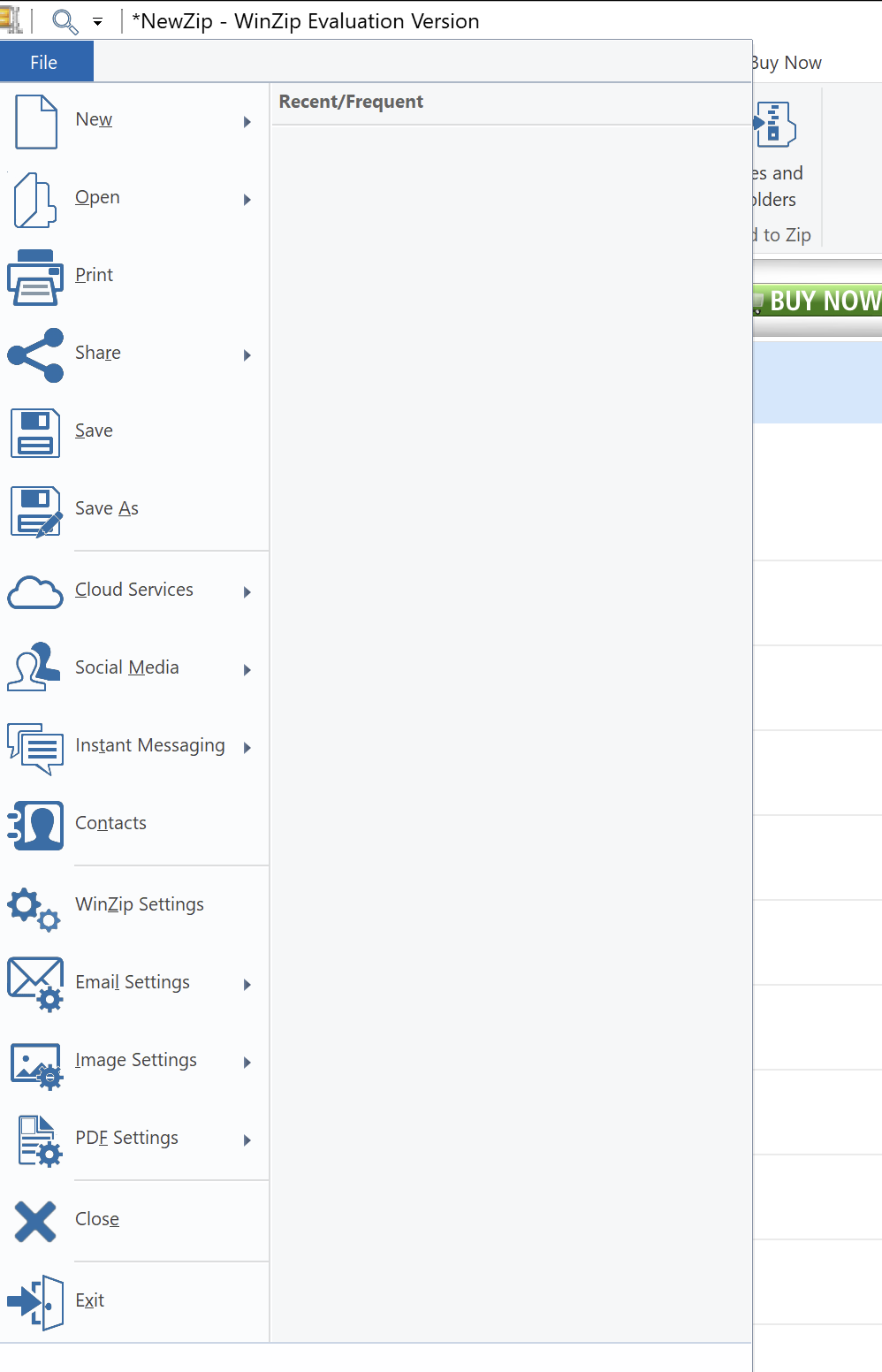
The File tab contains the following:
- New: Create an empty, new .zip or .zipx file (determined by the Default Compression setting)
- Open: Open existing WinZip files on connected drives, network locations, or cloud services.
- Print: Print a listing of the files currently displayed in an open WinZip file
- Save: Save the currently open WinZip file
- Share: To share Zip file with multiple option
- Save As: Save the currently open WinZip file to a new location and/or save it with a new file name
- Cloud Services: This option allows you to connect and manage your cloud storage services directly within WinZip. You can link your cloud accounts (such as Dropbox, Google Drive, OneDrive) and perform operations like uploading, downloading, and syncing files between your local system and cloud storage.
- Social Media: WinZip provides integration with various social media platforms. With this option, you can compress and share files or folders directly to social media platforms like Facebook, Twitter, LinkedIn, and more, without leaving the WinZip application.
- Instant Messaging: This feature enables you to quickly share compressed files or folders through instant messaging applications such as Microsoft Teams, Slack, Skype, or other compatible platforms. It provides a seamless way to send compressed files directly from WinZip while communicating with others.
- Contacts: WinZip allows you to manage your contacts within the application. You can create, edit, and organize contact information for individuals or groups, making it easier to share files with specific recipients or contact lists.
- WinZip Settings: This option provides access to WinZip's general settings and preferences. You can configure various options related to file compression, encryption, integration with other applications, interface preferences, and more. It allows you to customize WinZip according to your specific needs.
- Email Settings: WinZip integrates with email clients, enabling you to send compressed files or folders as email attachments directly from the application. The Email Settings option lets you configure and manage email settings, including email account setup, SMTP server settings, and other email-related preferences.
- Image Settings: WinZip includes image compression capabilities to reduce the file size of images without significant quality loss. The Image Settings option allows you to configure image compression settings, such as image format, compression level, resizing options, and more.
- PDF Settings: This option allows you to customize settings related to PDF file compression and conversion. You can control the compression level, choose whether to include or exclude specific elements in the PDF, adjust image quality, and specify other PDF-related preferences.
- Close: Close the currently open WinZip file without closing WinZip
- Exit: Close WinZip app
UnZip tab
The Unzip tab provides the actions and their options available when you have opened a Zip file in the WinZip user interface. The features in this tab are listed by section and described below the picture.

Unzip to
- Same Folder as Zip: When you click this button, a folder will be created in the same location as your Zip file, and all the files from the Zip file will be unzipped into it.
- Documents: This button unzips to a folder having the same name as the Zip file as the one above but always puts that folder in the Documents folder. There is a drop-down menu item that allows you to choose a different folder, which can also change the name of the button.
- Last Folder Used to Unzip: This button is only active after selecting a particular folder to unzip files to in a previous session. You can then use it to unzip directly into that folder again.
- My PC or Cloud: If you want to browse to a specific folder you will use for the files you are unzipping, this is the button to click.
Files to Unzip
- All files: Click this radio button to cause all of the files and folders in the Zip file to be unzipped (or copied)
- Selected Files: Click this radio button to cause only those files and folders you have selected to be unzipped (or copied)
Downloads
- Unzip and Try: Unzip the files in your open WinZip file to a specified location in order to try them out with the option to delete the extracted files when you close the WinZip file or exit WinZip
- Unzip and Install: Click this button if it is active (WinZip recognizes installable files) to unzip files, run the software setup, and have WinZip clean up the temporary files
Show
- Last Output: View the results of the last operation WinZip performed
- Comments: Create, view, edit, or delete a comment embedded in your Zip file
- Properties: View the properties of your open WinZip file or of a file you have selected in your open WinZip file
- Diagnostics: Run a diagnostic test of your open WinZip file and view simple or detailed results of the test
- Unzip Settings: Use this drop-down menu to select up to 4 options to be used when you unzip (these options will remain checked or unchecked each time WinZip is opened)
- Prompt Before Replacing Files
- Don't Replace Newer Files with Older Versions
- Use Folder Names
- Show Unzipped Files (unzipped files will show in the WinZip Files pane)
Zip tab
The Zip tab provides the tools that you will want to use when creating WinZip files. The features in this tab are listed by section and described below the picture.
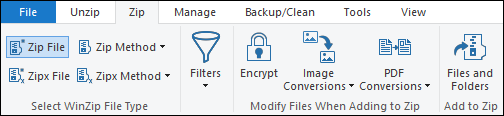
Select WinZip File Type
Use the provided buttons to have WinZip switch file creation type immediately from Zip File to Zipx File or vice versa. Starting with WinZip 26.0 you can also configure WinZip to use any of the 4 Zip file compression methods or if you have chosen Zipx, you will have an additional six compression methods you may choose.
Filters
The Filters drop-down menu provides options for filtering the files being added to your Zip file. The default is all files with none of the options turned on. You edit the default to change that action if you want, or you can select a previously created filter. The available actions are:
- Create new: Create a new Include filter, Exclude filter, or a combination of both
- Edit: Make changes to filters you created at an earlier time
- Remove: Delete filters you have created and no longer wish to keep
The Include and Exclude filter types will be available when you are creating or editing. You also can select any of the following options:
- Full path information
- Hidden/system files
- Unarchived files only
- Reset the archive bit of added files
Modify Files When Adding to Zip
There are three types of conversions available here. You may use some or none of them. They are:
- Encrypt: Open WinZip Options from the File Tab if you want to configure this. Otherwise, your files will all be encrypted with very strong AES 256-bit encryption.
- Image Conversions: There are 4 options here. You can check any number of them:
- Reduce Photo Size: Make your photo files physically smaller, so they are easier to share.
- Remove Personal Data: Eliminate your personal data from the files you add.
- Convert Photos: Convert your various photo files into one particular photo type file.
- Watermark: Add a watermark to your photo files to prevent misuse by others.
- PDF Conversions: You may choose from the following 5 PDF file options:
- Convert from PDFs: This option converts a PDF file to another type of document you must configure. You will find 2 Word document types and 4 photo types.
- Convert to PDFs: When you select this, any files being added that are listed in the options for the feature will be converted to a PDF file.
- Combine Files into a PDF: When this option is on, and you are either adding PDF files to your Zip file or if you have also turned the Convert to PDFs option on, WinZip will combine all PDF files into one and provide the means for you to put them in any order you choose.
- Sign PDFs: You must provide a certificate file for your signature, and then use this option to sign each PDF you zip.
- Watermark: Add a watermark to your PDF files to prevent misuse by others.
Add to Zip
Click the Files and Folders button in this section and WinZip's Super Picker dialog, allowing you to find files to add from local, network, and cloud service locations. The super picker dialog also will have a drop-down menu for the button at the bottom so that you can choose the default Add or Freshen, Move, or Update.
Manage tab
If you have no files or folders selected when you click the Manage tab, all of the buttons will be gray. When a file, a folder, or multiple items are selected, you will find appropriate buttons ready to be used. The features in this tab are listed by section and described below the picture.

Clipboard
- Copy Path: Click this button to copy the path to the folder being viewed to the clipboard for your documenting or use with the Paste Shortcut button
- Copy Link: Use this to upload a file or folder to a cloud service and copy a sharing link to the clipboard
- Paste Shortcut: After copying the path to a folder, navigate to the desktop or another folder and use this button to create a shortcut there; when double-clicked, the shortcut will open WinZip to the copied location
Organize
- Move To: Selected files and/or folders will be moved to the location you select
- Copy To: Selected files and/or folders will be copied, and the copies will be placed in the location your select
- Delete: Selected files and/or folders will be sent to the Recycle Bin
- Wipe: Selected files and/or folders will be deleted, and the location wiped*
- Undo: Undo the last file management action (does not apply to Wipe)
- Rename: Rename the selected file, folder, or combination; single or multiple renaming can be done
| Note: please be careful when choosing the Wipe feature, as this operation cannot be reverted back. |
New
- New Folder: Create a new folder in the currently displayed location
- Map as Drive: Map the currently selected or currently active folder as a drive (cannot be a cloud folder)
- Add a network location: Create a shortcut to a folder in a shared location on your network and more that will then display in the Files pane
Open
- Properties: Open the Property dialog for the selected file, folder, or combination
- Open with: Selected file can be opened with the associated program or one you choose
- Edit: Edit a file in its default application; files that run when opened, such as batch files, will only display in the default application
Backup/Clean tab
The Backup/Clean tab of the WinZip Ribbon provides updated powerful WinZip Backup features and it gives access to a variety of WinZip Background Tools.

Switch To
This first section really contains one button that acts as a toggle. Only the features that are relevant will show and they will change when you click the toggle.
- Advanced Secure Backup: When the toggle reads this you can click it to see all of the WinZip Backup features that have been available in earlier versions of WinZip.
- Simple Secure Backup: If you clicked Advanced Secure Backup and you would like to return to the simpler version, click this button.
Backup (Simple Secure)
- Folder: This is a new, simple method for selecting a folder for backup and optionally scheduling it.
Predefined Backups (Advanced Secure)
- Documents Library: Run a job that will zip the contents of the Windows Documents Library
- Pictures Library: Run a job that will zip the contents of your Pictures Library
- Docs, Email, Favs, and Desktop: Run a job that will Zip the Documents, Email, Desktop, and Favorites folders as one job
- All Libraries: Run a job that will zip all of the files and folders in all of your Libraries
Note: for predefined backups, the resulting Zip file is always stored in C:\Users\<username>\Documents\My WinZip Files
Custom Backups (Advanced Secure)
- Run: Find and run a custom WinZip job you created earlier or select a recently run WinZip job from the list
- Create: Create a WinZip job
- A new custom job
- A job based on an existing WinZip job
- A job based on the files you have selected in WinZip's Files pane
- Edit: Edit an existing WinZip job
Tools tab
The Tools tab in file management mode allows you to convert selected single files without zipping them. The features in this tab are listed by section and described below the picture.
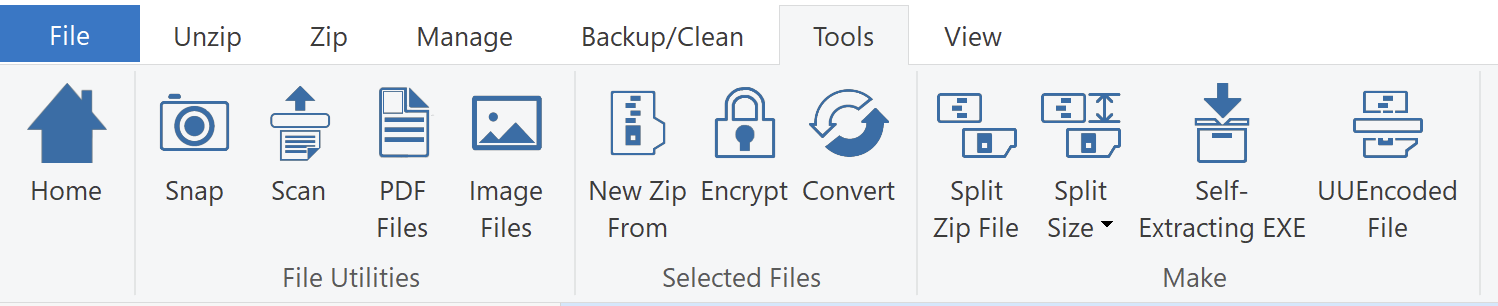
File Utilities
- Snap: With Snap, you can capture screenshots of your computer screen and save them directly to a Zip file or share them via email or other applications.
- Scan: The Scan feature enables you to scan files directly from your scanner to WinZip.
- PDF Files: This option provides tools for working with PDF files. You can convert files to PDF format, combine multiple PDFs into a single file, or extract pages from PDF documents.
- Image Files: With the Image Files feature, you can manage and work with image files more effectively. It includes options to resize images, convert image formats, and rotate or watermark images.
Selected Files
- New Zip From: This option allows you to create a new Zip archive from the selected files. You can customize various settings, such as compression level and encryption, during the creation process.
- Encrypt: The Encrypt feature enables you to add password-based encryption to the selected files or entire Zip archives. It helps protect sensitive data from unauthorized access.
- Convert: The Convert option allows you to convert the selected files between different formats, such as converting images from one format to another or converting documents to PDF.
Make
- Split Zip File: This feature allows you to split a large Zip archive into multiple smaller parts. It can be useful for transferring or storing large files in limited storage or for easier distribution.
- Split Size: When splitting a Zip file, you can specify the maximum size for each split part. This option helps you control the size of individual segments and ensures compatibility with different storage or transfer media.
- Self-Extracting EXE: With this option, you can create a self-extracting executable file from your Zip archive. It enables recipients to extract the contents of the archive without requiring any additional software.
- UUEncoded File: UUEncode is a method of converting binary files into a text format for easy transmission. The UUEncoded File feature allows you to encode selected files or archives into UUEncoded format for sharing or transmission purposes.
View tab
The View tab in management mode allows you to change some options for how and what you see displayed. The features in this tab are listed by section and described below the picture.

Reset to
- Default: Click this button to quickly reset WinZip back to the default view if you have earlier made changes
- Classic: Click this to quickly switch to the Classic view (Zip file pane only, the table layout, and showing all files in the Zip file)
Panes
- Files: Toggle the Files pane on or off
- Actions: Toggle the Actions pane on or off
Layout
Use the drop-down menus for the Files pane and the Zip pane to select one of these options:
- Tall rows: View Zip file contents in tall rows with larger icons; especially suited to touch screen usage
- Table: View Zip file contents in a detailed, short row, table format
- Icon: View Zip file contents as large thumbnail icons; excellent for reviewing photo Zip files
Current view
- Sort: Allows you to specify whether the list of files is sorted by Name, Type, or a number of other choices
- Show: Show your Zip file contents in a folder view or a flat, all files view
- Columns: Specify which columns will display when the all files view is in use
- Folder Tree: Causes the Zip file pane to show a folder tree column on the left for quick navigation within and modification of Zip files (it may be necessary to widen WinZip in order to see the folder tree column)
Windows
- New window: Open another empty WinZip window
- Close all: Close all of your open Zip files, leaving one empty WinZip window
- Switch windows: When working with more than one open Zip file, use this button to switch to a different WinZip window quickly
| Note: The selections in the Settings and Help tabs do not change in file management mode. |
File Previewer
Note: a WinZip Pro or WinZip Enterprise license is required for the File Previewer feature.
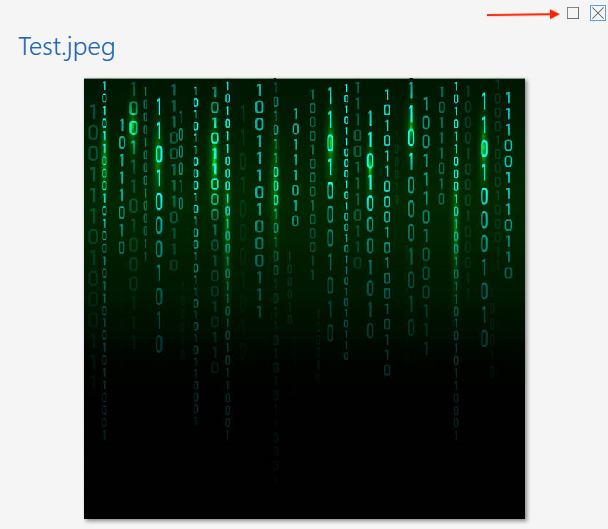
A file previewer is available while working in file management mode. The previewer will display when one file is selected. If the single selected file is a photo, a large thumbnail icon will display in the Actions pane, such as the picture to the right. Other types of files will also display a large icon, but the content will not display at this point. When working with photo files, this preview may very well be enough by itself. To switch to File Previewer, kindly click on the white button as shown below:
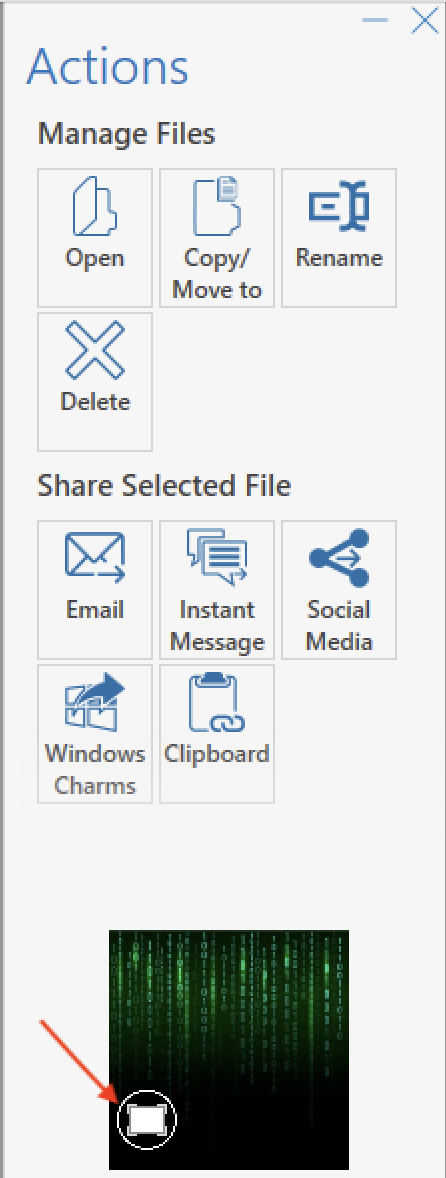
You will see an expand button in the file preview. A red arrow points this button out in the picture to the right. When clicked, this button will expand the preview pane , closing the Actions pane and causing the files pane to narrow. The picture below shows the expanded file preview page as it looks when displaying a photo file.

In the expanded file preview, you will find icons that allow you to perform the following actions:
- Starting with WinZip 22.5, you can maximize the preview to take up the entire WinZip window (top left)
- Preview the previous or next file
- Rotate a photo
- Resize a photo
- Delete the photo currently being viewed
- Display detailed information for photos
- Start a slide show to automatically display each photo one at a time
- Set a photo as your desktop background
- Share the file by email
- Share the file by IM
- Share the file by Social Media
- Share the file by Windows Charms
- Upload the file to a cloud service and copy a share link to the clipboard
Was this article helpful?
Tell us how we can improve it.