
| Note: WinZip versions earlier than WinZip 9.0 cannot extract from multiple archives. |
Along with Zip files (.zip and .zipx), WinZip 16.5 and later allows you to extract from multiple 7Z, CAB, ISO, IMG, LHA, LZH and RAR files. Earlier WinZip versions will only allow you to extract from multiple Zip files (.zip and .zipx) and multiple self-extracting archives in the Zip file format. WinZip will not offer the unzip options if multiple files are highlighted and unsupported archive files are included. If your computer is not configured to show you file extensions, please click here for the steps to change this configuration.
WinZip can quickly unzip multiple files through its drag-and-drop interface. You can select multiple WinZip files, right-click, and drag them to a folder to unzip them all with one operation.
- From an open folder window, highlight the WinZip files you want to Extract
- Right click in the highlighted area and drag to the destination folder
- Release the right mouse button
- Select WinZip > Unzip to here
Unzip multiple Zip files without using drag and drop
- From an open folder window, highlight the WinZip files you want to Extract
- Right-click in the highlighted area
- Choose WinZip > Unzip to ...
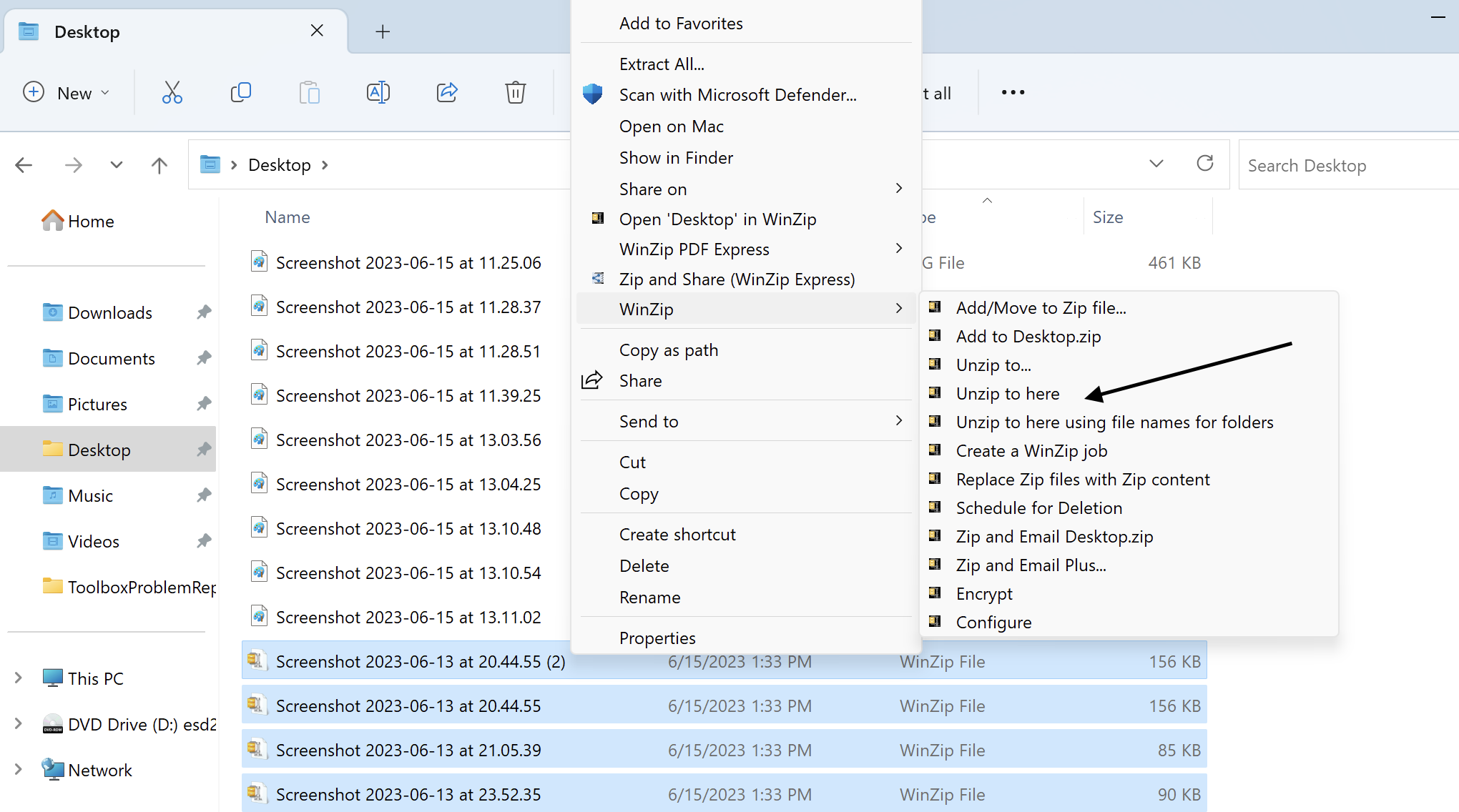
- Enter the destination folder
Unzip using Command Line Add-On
Another option, the WinZip Command Line Support Add-on, is available from the WinZip web site. This add-on includes two utilities, WZZIP and WZUNZIP. These utilities are fully documented in the WinZip Command Line Support Add-On Help file that installs with the add-on. You can download the command line add-on from the WinZip web site.
With the command line add-on, you can unzip multiple Zip files simultaneously using a command line similar to:
wzunzip *.zip
Visit here for more detailed instructions on how to open a zip file.
Was this article helpful?
Tell us how we can improve it.