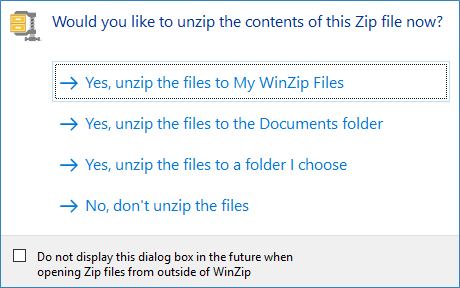
Here is a quick example of how to unzip a WinZip file:
- Double-click the WinZip file
- When the WinZip file opens, displaying its contents, click Unzip
That's it. A folder window will open displaying the extracted files and you can then use them as you wish.
In order to use a different folder name click Folder name. To choose a different folder as the target click Location. If you are using the Legacy menus/toolbar interface click Extract. Before unzipping, you may want to click the Settings tab, open the Unzip Settings drop down menu, and configure items in this list (similar configurations will be in the Extract dialog if you are using Legacy menus/toolbar).
In many cases, the quickest way to extract from a WinZip file is to use the context menu; that is to right click on it and choose an extract option from the WinZip submenu that displays.

If you have any questions or you are having difficulty extracting files, please email Technical Support.
Related Articles:
How to unzip multiple Zip files using right-click drag and drop
Create/Edit Tab - WinZip Ribbon
How do I compress the contents of a folder and later restore it?