
| Check here for more info on how to create a zip file. |
- Split Zip files
- Configuring the segment size
- How to create a split Zip file
- Create a split Zip file from the context menu
Split Zip files
WinZip can split Zip files (.zip or .zipx) into smaller pieces. A split Zip file will have multiple segments that are all of a specified size. The following lists gives several reasons why you might want to create a split Zip file.
- An alternative to spanning Zip files on CDs or DVDs:
- Use this alternative if you want to make multiple copies of your set of discs
- Use this alternative when you want to make the disc contents as a separate step from making the discs themselves
- To assist with large downloads: Some people may have difficulty downloading very large Zip files from web sites, FTP sites, etc. You can use the split Zip feature to break large files into smaller pieces that can be downloaded separately.
- Overcome email size limits: Some email systems limit the size of attachments; if you want to email a large Zip file that exceeds your limit, you can split it into smaller parts and email them separately. The WinZip default option for overcoming email size limits is to use one of the numerous supported Cloud services.
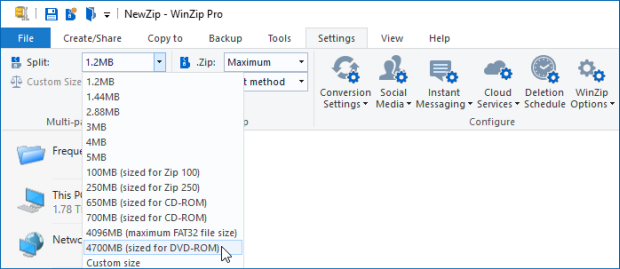
Configuring the segment size
Before you start, you should open WinZip to the Settings tab to configure your Split size. You can choose from common split sizes on the drop-down menu, or you can specify your size. To specify your own size:
- Choose Custom size in the Split drop down menu
- Click the spinner arrow to adjust the Custom Size (MB) setting
- Or click in the Custom Size (MB) text box and type size (in megabytes) with one decimal place

How to create a split Zip file
| To create a split Zip file immediately with WinZip, rather than from an existing Zip file, you can create and use a WinZip Backup (Job file). A Pro registration is required to use WinZip backup features. |
To create a split Zip file, you would need to:
- Create a new Zip file or open an existing one in WinZip
- Click the Tools tab and click Multi-Part Zip File
- Type the name for your split Zip file and choose a target folder
Note: The name must be different from the name of the open Zip file. - Click OK to create the Split Zip file.
Depending on the number of segments, the result is a sequence of files named filename.z01, filename.z02, and so on, ending with filename.zip. The naming convention for split Zipx files is filename.zx01, and so on, ending with filename.zipx. We recommend that the recipient of these files use the current version of WinZip to open and extract the contents of the split file, although WinZip 9.0 or later can be used if newer, advanced compression methods are not involved.
Create a split Zip file from the context menu
| Note: WinZip Express for Explorer cannot be used to create split Zip files. |
Starting with WinZip 21.5, you can create a split Zip file directly from a File Explorer window without creating a single, large Zip file first. You will still want to follow the instructions in Configuring the segment size before you create a split Zip file, to insure the size of your segments will be appropriate. Once that is done, you would:
- Locate and highlight the files and/or folders you want to zip in File Explorer
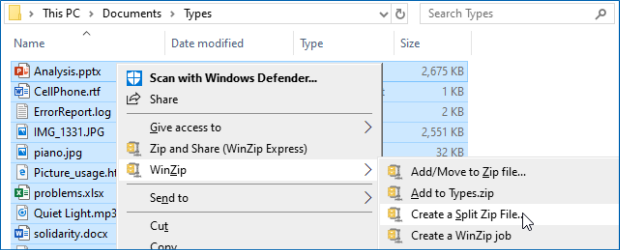
- Right click in the highlighted area and choose Create a Split Zip File from the WinZip submenu of the context menu
- In the Create a Split Zip File dialog that opens, change the file name and the destination if you wish, select other options, then click Create
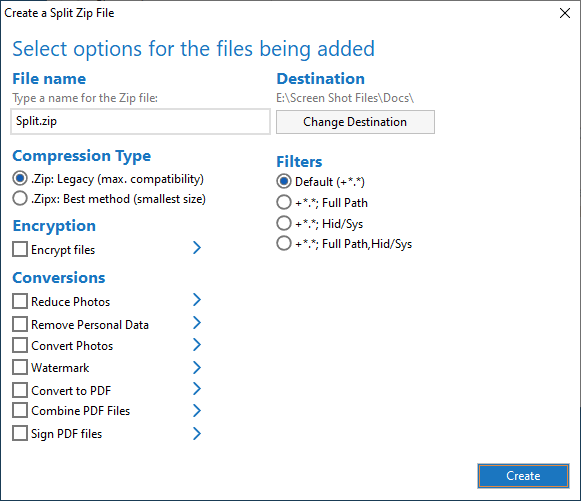
That's it! WinZip will create your split Zip file with the name you chose and in the location you selected.
Was this article helpful?
Tell us how we can improve it.