
|
Note: If you do not have your registration information, please check Registered Product Lookup section on our website. These codes are utilized to initiate the installation process of the WinZip software. WinZip provides you with a WinZip Registration Code when you purchase the software directly from the company. However, if you choose to buy the software from an authorized reseller, you are provided with a WinZip Activation Code instead. In cases where you purchase a multi-user license, a WinZip Registration File is offered to facilitate the installation process. |
If entering a registration code does not apply to you (e.g. you have an activation code or a multi-user license) the articles below may help:
How to register WinZip software using an activation code
How to register WinZip software using a registration file
Each set of instructions below assumes you have installed the correct major version of the appropriate application. The instructions are specific to the latest versions, but will be similar for earlier versions. Registration information for one major version will also register a minor upgrade (or vice versa), but it will not register another major version. For example, a registration code provided for WinZip 76.0 will also work with WinZip 76.1 and newer WinZip versions. However, a registration code for WinZip 25 will NOT work with WinZip 26 or WinZip 27.
When entering registration information, we recommend that you copy the code provided and paste it into the appropriate box.
Specifically for WinZip, if you have entered your name and code correctly, but you see a message saying Incomplete or incorrect information, open the appropriate applet in the Control Panel for uninstalling programs and check to see which version of WinZip is installed. If you find a different major version is installed, download and install the correct WinZip version.
Entering your WinZip registration code
| Note: Starting with WinZip 21.5, when single-user registration information is entered, it will be transmitted to and checked by a server to insure it is valid. If the computer is not connected to the internet, you will see an error. |
- Double-click the WinZip shortcut on the desktop (open WinZip)
- The registration reminder dialog will open
- Important: Enter your name and registration code EXACTLY as they appear on your registration acknowledgment email
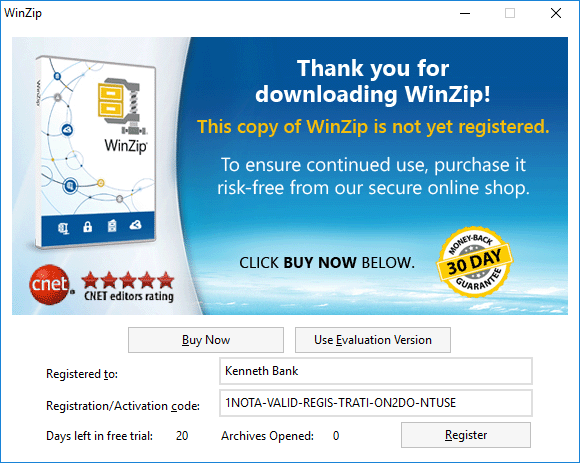
- Click Register - You should now be registered
Entering your WinZip Courier registration code
- Click Register WinZip Courier
- Windows 10 and Windows 11
Click the Start button at the lower left of your display, then All Apps, and then Register WinZip Courier in the WinZip Courier group - Windows 8
Click Register WinZip Courier on the Start page - Windows 7
Click Start, then All Programs, and then Register WinZip Courier in the WinZip Courier group - The Register WinZip Courier dialog will open
If the dialog is for a different WinZip Courier version, download and install the correct version. - Important: Enter your name and registration code EXACTLY as they appear on your registration acknowledgment email
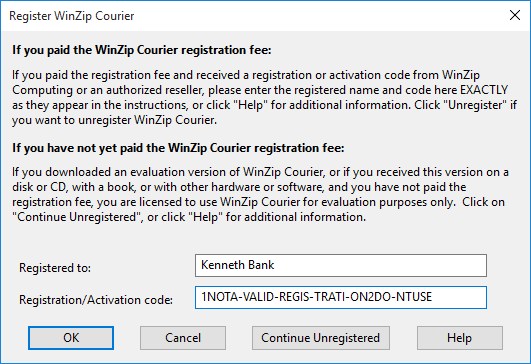
- Click OK - your software should now be registered
Entering your WinZip Self-Extractor registration code
- Open WinZip Self-Extractor
- Windows 10 and Windows 11
Click the Start button at the lower left or your display, then All Apps, and then WinZip Self-Extractor in the WinZip Self-Extractor group - Windows 8
Click WinZip Self-Extractor on the Start page - Windows 7
Click Start, then All Programs, and then WinZip Self-Extractor in the WinZip Self-Extractor group - Click OK to dismiss the registration reminder dialog
- Click Enter Registration Code
- The Register WinZip Self-Extractor dialog will open
If the dialog is for a different WinZip Self-Extractor version, download and install the correct version. - Important: Enter your name and registration code EXACTLY as they appear on your registration acknowledgment email
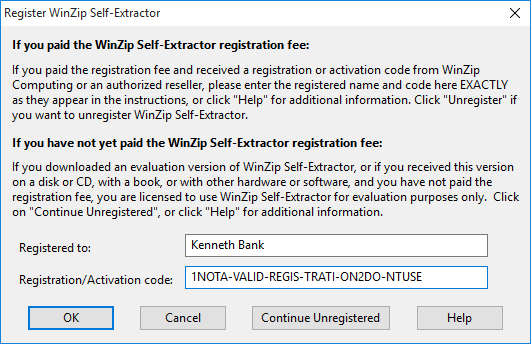
- Click OK - your software should now be registered
To use Copy and Paste
- Place your cursor at the beginning or end character of your code (in your email message or on a webpage)
- Click and hold your left mouse button and drag the cursor to the last character on the other end; this will cause the code to be highlighted
- Press CTRL+C on your keyboard to Copy the code
- Click in the box where the code must be entered and press CTRL+V on your keyboard to Paste the code there
Was this article helpful?
Tell us how we can improve it.